Last Updated: October 23, 2026
Quick Summary
Track field technician location in real time by monitoring where your field team is throughout the day using GPS and mobile apps. When you know where technicians are, you can assign jobs to whoever is closest, cutting travel time and enabling faster customer service and more completed jobs per day.
- GPS accuracy is typically within 5-10 meters in cities and 20-30 meters in rural areas or near tall buildings.
- Set location permissions to Always or Allow all the time, not just While Using App, so tracking continues in the background.
- Geofences should be 50-100 meters wide around your office, job sites, and service territory to avoid false clock-in entries.
- One extra job per technician per day across a five-person team generates approximately $250,000 in additional annual revenue.
- Adoption fails if technicians feel monitored rather than supported, so frame tracking as a tool that helps them work smarter.
Table of Contents
- Why Real-Time Technician Location Tracking Matters
- GPS Tracking for Field Technicians: Core Setup and Configuration
- Employee Location Tracking Best Practices: Privacy and Consent
- Field Service Dispatch Mapping: Assigning and Optimizing Routes
- Field Technician Mobile App: Ensuring Team Adoption
- Measuring Performance: Tracking Metrics That Matter
- Common Mistakes to Avoid When Implementing Technician Tracking
- Frequently Asked Questions
Why Real-Time Technician Location Tracking Matters
Track field technician location in real time by monitoring where your field team is throughout the day using GPS and mobile apps.
When you know where your technicians are, you can assign jobs to whoever is closest. This cuts travel time. Customers get faster service. Your team completes more jobs per day.
Most field service businesses struggle with the same problem: dispatchers guessing who should take the next job. Real-time tracking solves this. Learn the specific benefits of GPS tracking before committing to implementation.
At YourRadar, we’ve worked with trades businesses for over 25 years.
The biggest mistake is deploying tracking without buy-in from your field team. If technicians feel monitored rather than supported, adoption fails. Frame it as a tool that helps them work smarter, not a spy system.
GPS Tracking for Field Technicians: Core Setup and Configuration
Choosing the Right GPS Hardware and Mobile Device
Your technicians already carry smartphones with GPS built in, so you don’t need expensive hardware. The key is choosing devices that work reliably in the field.
Android phones are more affordable and flexible; iPhones offer stronger security and consistent performance. For a small team, mixed devices work fine, good tracking software runs on both.
Look for phones with:
- Strong battery life (at least 8 hours of heavy use)
- Rugged cases or water resistance for construction sites
- Large screens so technicians can see job details and customer addresses
Some businesses add dedicated GPS units to service vehicles, which work even if a technician forgets their phone.
Enabling Location Permissions and Background Tracking
GPS tracking only works if your app has permission to access location data. On both Android and iPhones, you need to enable location permissions explicitly.
Here’s what to do:
- Install your tracking app on each technician’s phone
- Open the app settings and find location permissions
- Set location access to “Always” or “Allow all the time”, not just “While Using App”
- Enable background location in the app’s advanced settings
- Turn off battery optimization for the tracking app so it runs continuously
- Test GPS accuracy by checking if the app shows the correct location after a few minutes
Background tracking drains battery faster. Let your team know to charge phones at lunch or keep a car charger handy. Some businesses provide charging cables for service vehicles.
GPS accuracy depends on signal strength: usually within 5-10 meters in cities, drifting to 20-30 meters in rural areas or near tall buildings. That’s normal and accurate enough for dispatch.
If location permissions are set to “While Using App,” tracking stops the moment a technician switches to another app or the screen locks. Always use “Always” or background permission. Test it before rolling out to your full team.
Employee Location Tracking Best Practices: Privacy and Consent
Building a Location Tracking Policy
Before you turn on tracking, your team needs to know it’s happening. A written policy protects both your business and your employees.
Your policy should cover:
- Why you’re tracking: Faster job assignment, better customer service, improved safety
- What data you collect: GPS location, clock-in/clock-out times, job arrival times
- How long you keep it: Most businesses keep 30-90 days of location history
Have each team member sign or acknowledge the policy. This isn’t legal advice, check with an employment lawyer in your province to ensure your policy follows local employment standards and privacy laws.
Tracking Hours and Geofencing Boundaries
Geofencing is a virtual boundary around your office, job sites, or service areas. When a technician enters or leaves one, the system records it, giving you accurate clock-in and clock-out times without manual entry.
Set up geofences around:
- Your office or dispatch center (clock in when they arrive)
- Regular job sites (track arrival and departure)
- Your service territory boundaries (know when someone’s leaving the area)
Geofences should be 50-100 meters wide so technicians don’t trigger false entries by parking nearby. Test them before going live.
Geofencing solves a common problem: technicians forgetting to clock in or out, or manually adjusting times. Automatic location-based clock-in is more accurate and saves administrative time.
Geofencing plus GPS tracking gives you two layers of data: where technicians are in real time, and automatic records of when they arrived and left. This eliminates timesheet disputes and gives you accurate billable hours.
Field Service Dispatch Mapping: Assigning and Optimizing Routes
Live Map Visibility and Job Assignment by Proximity
A live map shows every technician’s location in real time. When a new job comes in, you see who’s closest and assign it instantly.
Most modern dispatch software displays:
- Technician icons on a map showing current location
- Job locations marked separately
- Travel time estimates between locations
Assigning a job to the closest technician saves travel time. Less driving means more billable hours, and the technician reaches the customer faster, improving satisfaction.
Some systems let technicians accept or decline jobs through the app. Others let dispatch push assignments directly. Choose based on your team’s workflow.
Scheduling and Route Optimization
Route optimization software calculates the best order to visit multiple jobs, minimizing travel distance and time instead of visiting jobs in the order they came in.
A good route optimization system considers:
- Current technician location
- Job locations and addresses
- Time windows (jobs that must be done before a certain time)
The result: fewer miles driven, faster job completion, and more jobs per technician per day.
YourRadar’s dispatch mapping shows all jobs and technicians on one screen. You can drag jobs between technicians, adjust routes manually, or let the system optimize automatically.
Teams with 5-20 technicians who want to cut dispatch time and improve route efficiency without complex software. Manual optimization on a live map is faster than phone calls and email.
Field Technician Mobile App: Ensuring Team Adoption
Selecting an App Your Team Will Actually Use
The best tracking system fails if your technicians don’t use it. Most adoption failures happen because the app is confusing or feels like extra work.
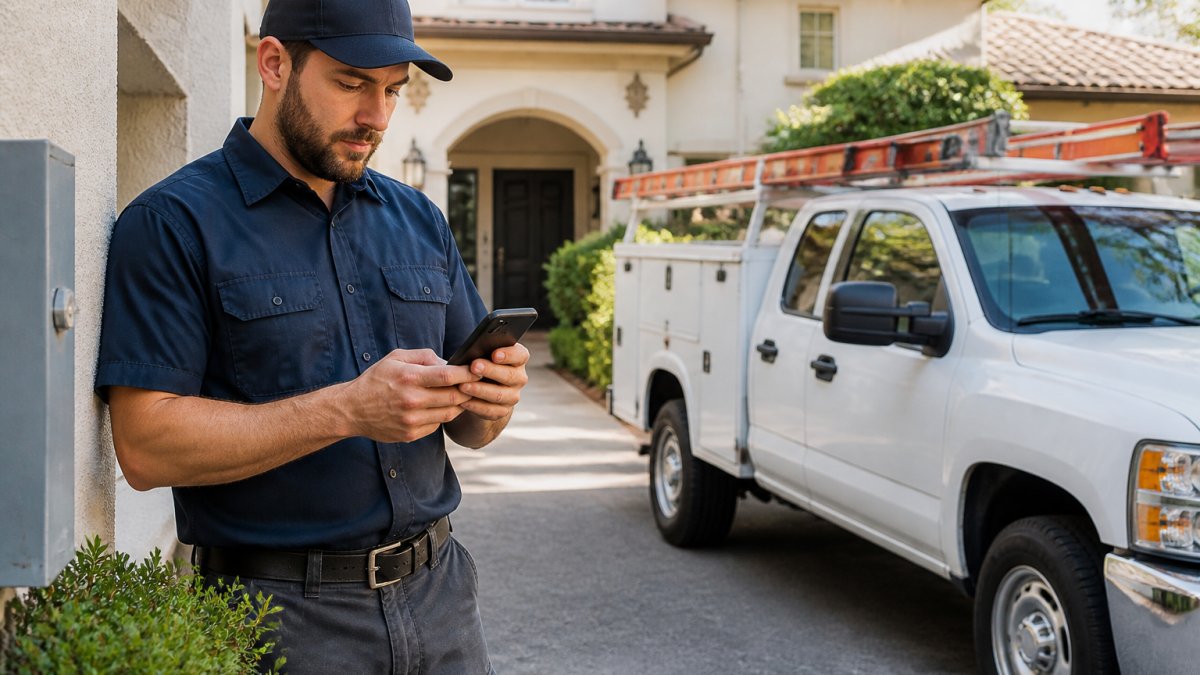
Look for apps that:
- Have a simple, clean interface, no clutter or unnecessary features
- Show the current job clearly with customer address and phone number
- Let technicians clock in with one tap
Non-tech-savvy employees need straightforward workflows. If clocking in takes five screens, adoption suffers. The best apps feel designed for field workers, not office staff.
Test the app with a few technicians before rolling out to everyone. Learn how to avoid common software implementation pitfalls that cause adoption failure.
Training and Troubleshooting Common Issues
Training should be hands-on, not a manual.
Cover these basics:
- How to clock in and out
- How to navigate to the next job
- How to mark a job complete
Common issues and fixes:
GPS shows wrong location: Turn off battery saver mode. Restart the app. Wait 30 seconds for GPS to lock on. If it persists, restart the phone.
App won’t sync data: Check cellular or WiFi connection. Restart the app. If offline, data syncs when connection returns.
Battery drains too fast: Enable battery saver mode during slow periods. Provide car chargers. Reduce screen brightness.
Technician forgets to clock in: Set up geofencing so the app auto-clocks them in when they reach a job site.
Have one person (usually dispatch or a tech-savvy team member) be the first point of contact for app issues. They learn troubleshooting faster and can help others. Getting Field Techs To Use Mobile Apps: 7 Proven Steps walks through proven adoption strategies.
The first week after launch, you’ll see questions and complaints. This is normal. Respond quickly and patiently. The first experience shapes whether technicians trust the system. Fast support builds adoption; slow support kills it.
Measuring Performance: Tracking Metrics That Matter
Key Performance Indicators for Field Operations
Once you have location tracking in place, measure what matters. The right metrics show whether the system is working.
Track these KPIs:
| Metric | What It Measures | Why It Matters |
|---|---|---|
| Average travel time | Minutes between job sites | Lower travel time = more billable hours |
| Jobs per technician per day | Number of completed jobs | Shows productivity and route efficiency |
| On-time arrival rate | % of jobs started within 15 min of scheduled time | Improves customer satisfaction |
| First-time fix rate | % of jobs completed without callbacks | Reduces rework and lost revenue |
| Technician use | % of time spent on billable work vs. driving | Identifies inefficiencies in scheduling |
| Response time to new jobs | Minutes from job creation to technician assignment | Shows dispatch speed and efficiency |
Review these metrics weekly. Look for trends. If on-time arrival drops, adjust scheduling or routes. If first-time fix rate is low, investigate whether technicians need more training or better job information.
Calculating ROI and Billable Hours Improvement
The real payoff from location tracking is increased billable hours. When you cut travel time and optimize routes, technicians complete more jobs.
To calculate ROI:
- Measure baseline: Track average jobs per technician per day for one month before implementing tracking
- Implement tracking: Roll out the system and train your team
- Measure after: Track jobs per technician per day for one month after full adoption
- Calculate improvement: If your team goes from 4 jobs per day to 5 jobs per day, that’s a 25% increase
- Multiply by revenue: If each job averages $200 in billable work, one extra job per day per technician = $200/day extra revenue
For a five-person team, one extra job per day per person = $1,000/day or $250,000/year in additional revenue (assuming 250 working days).
Calculating ROI for Field Service Management Tools provides a detailed framework for measuring your specific business impact.
Common Mistakes to Avoid When Implementing Technician Tracking
Deploying without team input. Technicians resist systems they didn’t help design.
Ignoring GPS accuracy limits. GPS drifts in cities and near tall buildings.
Choosing an app no one will use. Complex software with too many features causes adoption failure.
Forgetting to communicate ROI to your team. Show technicians how the system helps them.
Tracking field technician location is one of the most powerful tools for scaling a trades business.
YourRadar gives you real-time visibility into your field operations with a mobile app designed for non-tech-savvy teams. You get the data you need to run a tighter operation. Request a Demo to see how location tracking can improve your business.
Frequently Asked Questions
How can I track field technician location in real time?
Use a field service mobile app with built-in GPS that transmits location data continuously during work hours. The app sends updates to a live map visible to your dispatcher and office team. Enable background location tracking in your mobile device settings and ensure technicians have location permissions activated. Most field service platforms store location history, allowing you to review routes and arrival times after the job is complete.
What are the best practices for employee location tracking while respecting privacy?
Establish a clear location tracking policy that outlines when tracking is active (during work hours only, not commute time or personal time), what data is collected, and how long it’s retained. Obtain written consent from all technicians before enabling tracking. Use geofencing to limit tracking to job sites and service areas. Communicate that tracking is for dispatch efficiency and customer communication, not surveillance. Allow technicians to see what data is being collected about them, and review your policy annually with your team.
Can GPS tracking actually improve field service dispatching?
Yes. GPS tracking enables dispatchers to assign jobs to the nearest available technician, reducing travel time and fuel costs. Live location data shows real arrival times, allowing dispatchers to give customers accurate ETAs and reschedule jobs if needed. Tracking also reveals inefficient routes and overlap patterns, helping you optimize daily schedules. Over time, improved dispatch efficiency typically increases the number of jobs completed per technician per day, boosting billable hours and customer satisfaction.
What should I look for in a field technician mobile app?
Prioritize ease of use for non-technical staff. The app should display job details, customer addresses, and navigation in one place. Real-time location sharing should work reliably with minimal battery drain. Look for offline functionality so technicians can access job info even without signal. The app should integrate with your existing scheduling and invoicing tools to reduce duplicate data entry. Choose a platform with in-house support for troubleshooting and training, especially if your team is not tech-savvy. A demo helps you test adoption before committing.