
Table of Contents
- Why Manual Timesheets Fail Remote Crews
- What You’ll Need Before You Start
- Step 1: Choose the Right Mobile Time Tracking Apps for Contractors
- Step 2: Set Up Offline-First Timesheet Entry for Remote Crews
- Step 3: Apply Best Practices for Remote Team Timesheets
- Step 4: Reduce Payroll Errors in Field Operations
- Step 5: Get Your Crew to Actually Use It
- Common Mistakes to Avoid When Simplifying Timesheet Entry
- Frequently Asked Questions
Last Updated: September 22, 2026
Why Manual Timesheets Fail Remote Crews
Paper timesheets and spreadsheet logs break down the moment your crews leave the office. A 2026 survey from the Canadian Federation of Independent Business found that small trades firms still lose hours every week to manual time tracking. We hear the same story from HVAC and plumbing owners: hours get lost, invoices go out late, and nobody trusts the numbers.
Simplifying timesheet entry for remote crews starts with one hard truth. The problem is not lazy staff.
The Real Cost of Paper and Spreadsheet Time Tracking
Manual entry errors are the quiet killer. A tech writes “8” instead of “3” and your job costing is wrong for the whole project.
Here is what actually goes wrong:
- Illegible handwriting forces office staff to call the crew for clarification
- Lost slips mean hours get estimated, not recorded
- Late submissions delay project billing by days
- No audit trail makes disputes with clients hard to win
What You’ll Need Before You Start
You need three things before you switch systems: a smartphone for every field worker, a clear pay and overtime policy, and a point person to own the rollout.
Gather these first:
- A list of every employee who logs hours, including apprentices
- Your current payroll cycle and cut-off dates
- Job or project codes your crews bill against
- Your province’s employment standards rules on hours and overtime
Step 1: Choose the Right Mobile Time Tracking Apps for Contractors
The best mobile time tracking apps for contractors share one trait: they work on a phone in a truck, not just on a desktop.
Look for these features when you compare options:
|
Feature |
Why It Matters |
Deal-Breaker If Missing |
|---|---|---|
|
Offline mode |
Crews work in basements and rural sites |
Yes |
|
GPS or geofencing |
Confirms the crew is on site |
No |
|
Job costing |
Ties hours to the right project |
Yes |
|
Payroll export |
Sends clean data to your payroll system |
Yes |
|
Photo and note capture |
Documents the work done |
No |
Features That Matter Most for Field Crews
A simple time entry interface beats a feature-packed one your crew won’t open. Non-tech-savvy employees need big buttons, few taps, and clear labels.
Step 2: Set Up Offline-First Timesheet Entry for Remote Crews
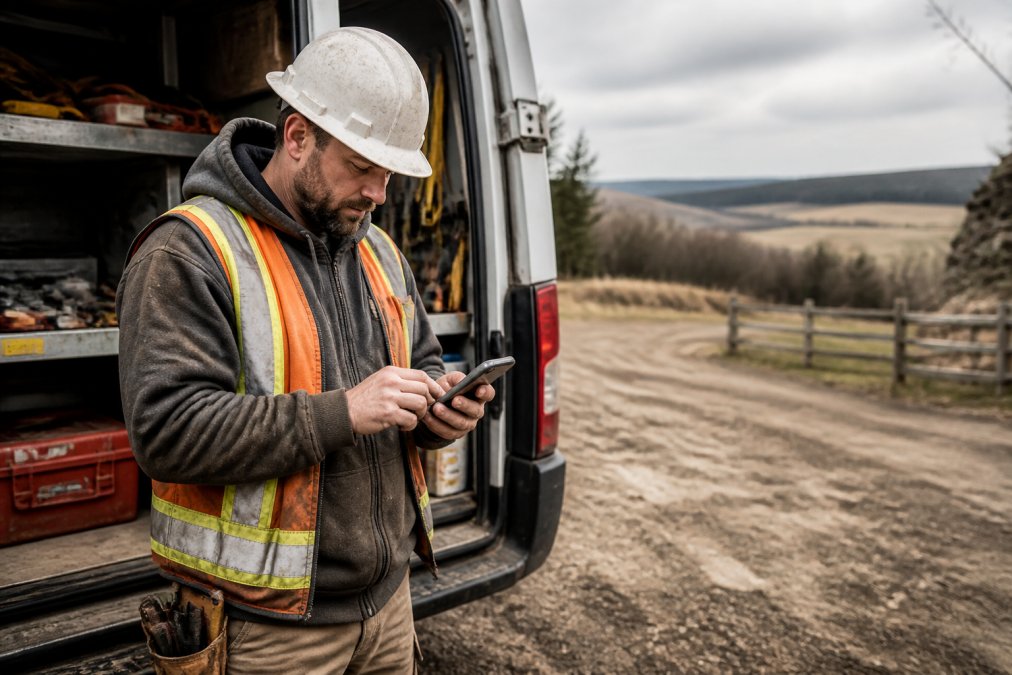
Offline-first means the app writes every entry to the device’s local storage first, then pushes it to your central system when a signal returns. For crews working in basements, parkades, rural service calls, and steel-framed buildings, this is not a nice-to-have. It is the difference between a timesheet that exists and one that never gets filed.
Set it up in this order:
- Turn on local storage in the app settings and confirm the app writes to the device, not to a server
- Confirm entries save with airplane mode enabled
- Test in airplane mode yourself before your crew does
- Set the sync trigger to “on reconnect” plus a manual sync button the crew can tap
- Decide how long unsynced data stays on the device (a common default is 7 to 30 days)
How Data Synchronization Works When Connectivity Drops
Data synchronization is the process of pushing saved time entries from a device to your central system once a connection is available. The app holds the data locally, then uploads it in the background, usually as a queue, oldest entry first.
- A tech logs a job offline, then edits it on the office desktop before the phone reconnects
- A supervisor approves a shift on the web while the crew member is still editing it offline
- Two devices log the same worker because a shift was handed off mid-job
What to Check Before You Trust the Sync
Most practitioners find that sync problems show up in three places. Test each one before launch:
- Clock drift. If a phone’s clock is wrong, the entry timestamp is wrong. Force the app to use server time on sync, not device time.
- Duplicate entries. Log the same job twice offline and confirm the app deduplicates rather than doubling the hours.
- Partial uploads. Kill the connection mid-sync and confirm the app retries the whole batch, not just the last record.
Storage and Battery Trade-offs
Local storage is not free. A phone holding weeks of unsynced entries, photos, and job notes will fill up, and a dead battery means a lost shift. Set a policy: crews sync at the end of every shift when they have signal, and the app warns when unsynced data is more than 48 hours old. That single warning catches most of the data loss before it happens.
Step 3: Apply Best Practices for Remote Team Timesheets
The best practices for remote team timesheets come down to three rules: log daily, review weekly, and lock the pay period.
Follow this routine:
- Crews submit hours at the end of each job, not each week
- Supervisors review and approve within 24 hours
- The office locks the period before payroll runs
- Any edits after lock require a written reason
Step 4: Reduce Payroll Errors in Field Operations
Reducing payroll errors in field operations starts with validation at the point of entry. The app should block bad data before it reaches your payroll system, not after a paycheque has already gone out.
Build these checks into your setup:
- Flag any shift over a set hour limit (for example, anything over 12 hours in a day)
- Require a job code on every entry
- Block overlapping time for the same worker
- Alert on entries outside the scheduled shift window
- Require a supervisor note on any manual edit after submission
Data Validation and Fraud Prevention Tactics
Geofencing is your best tool here. It ties a time entry to a physical location, so a crew member cannot clock in from home. The app compares the phone’s GPS coordinates against a radius you set around the job site, commonly 100 to 200 meters, wider for large sites and tighter for residential calls.
A layered approach works better than any single control:
- GPS geofence confirms the device is on site
- Photo capture with a timestamp confirms the work was done
- Job code requirement ties the hours to a billable project
- Supervisor approval adds a human check before payroll runs
- Immutable audit log records every edit, who made it, and when
What Geofencing Cannot Do
Be honest about the limits. GPS drifts inside buildings, in dense urban cores, and under heavy cloud. A tech in a basement may show as 300 meters off. That is why geofencing should flag, not block. If you block, you will spend your mornings unlocking timesheets for crews who were exactly where they said they were.
Step 5: Get Your Crew to Actually Use It
User adoption decides whether your new system works or becomes another ignored app. The software is rarely the problem. The rollout is.
Change management for field crews follows a simple playbook:
- Roll out to one crew first, not everyone at once
- Pick a respected lead hand as your champion
- Show the crew how it saves them time on paperwork
- Tie adoption to a real benefit, like faster expense reimbursement
Common Mistakes to Avoid When Simplifying Timesheet Entry
The biggest mistake is buying software before you fix your process. A bad process just gets faster.
Avoid these traps:
- Rolling out to all crews on the same day
- Skipping the offline test before launch
- Letting supervisors approve without reviewing
- Ignoring your province’s record-keeping rules
- Choosing an app with no payroll export
Frequently Asked Questions
How can I simplify timesheet tracking for remote employees?
Start by replacing paper and spreadsheets with a mobile-first time tracking tool that works offline. Set up geofencing so crews can clock in automatically when they arrive at a job site. Require job codes and project phases on every entry so hours map directly to billing. Build a short daily review habit where supervisors check submissions before they reach payroll. These steps cut manual entry errors and reduce the back-and-forth that eats administrative time.
What features should I look for in a remote timesheet app?
Prioritize offline-first data synchronization, because field crews often work in areas with weak cell coverage. Look for GPS or geofencing to confirm job-site presence, a simple mobile time entry interface that non-tech-savvy employees can learn in minutes, and payroll integration with your existing accounting software. Audit trail and compliance reporting features matter too, especially for labor standards documentation. A tool that covers all of these removes the need for separate apps and manual reconciliation.
How does mobile time tracking improve payroll accuracy?
Mobile time tracking removes the two biggest sources of payroll errors: illegible handwritten timesheets and delayed data entry. When crews log hours on their phones at the job site, the data flows directly into payroll without a manual transcription step. Automated validation flags entries that fall outside scheduled hours or lack a job code. This reduces overpayments, underpayments, and the costly rework of chasing down corrections after payroll has already run.
How long does it take to get a remote crew using a new timesheet system?
Most trades businesses can have a mobile timesheet tool running within one to two weeks. The first few days involve setting up job codes, pay rates, and geofence locations. Then run a short training session, ideally on-site, where crew members practice clocking in and out on their own phones. Assign one tech-savvy employee as a go-to person for questions. Expect a two-to-three week adjustment period before the new process feels routine for everyone.